We have been using Microsoft Teams for long enough that a certain level of “stuff” has accumulated in everyone’s Teams environment that would be good to take a long hard look at. You have been added to Teams by others, you have channels that were important once but not anymore and most likely, you have an endless flow of chats that you struggle to keep on top of. Also, one thing is constant: notifications and too much information. It is easy to blame the tool – I have heard people say that they don’t like Teams, but there are a few simple tips that you can use to clean up, detox and regain control over your Teams experience – this is what this article is about.
Note: Teams, e-mail and other collaboration tools are very personal. There is no one solution that will fit everyone so I’m not setting out to share the best way to do things, but knowing the options and seeing a few ideas will help you set your own preferences. Follow me along and let’s see how useful we can make Teams again for you.
Let’s Quiet the Noise First
Constant pop-ups and notifications can be distracting. We all like to notice a squirrel in our view… Make sure you only get notified of things that you want to be notified of. My personal preference in this is very narrow – I want very few notifications and want to look at things when I want to look at them, so I turn off most pop-up notifications and rely on my activity feed for following things. But of course, your preferences may vary. There is a whole page for notifications in Settings, go there now, explore and make a few decisions. I’ll wait here…
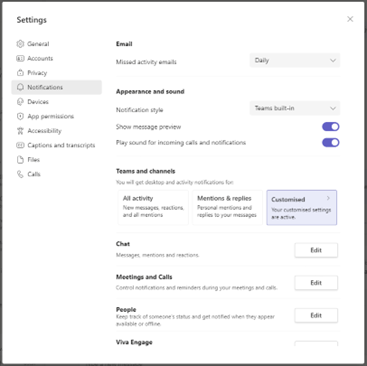
Cleaning out Your Activity Feed
We get added to teams left and right. Some, because we are active members, others because people use it as a way of granting permissions. All these however can sneak into our activity feed and make it noisy and borderline useless. Constant pop-ups also distract from our work. It is worth going through your notifications in the activity feed and clear out the ones that you don’t want to hear about. I link an article below that will help a great deal, but to share my favourite: when I see a channel notification that I think is not relevant for me, I make sure to right-click and turn off notifications from that channel there and then:
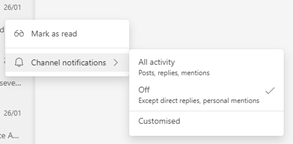
You can see more about notifications in this article: Manage notifications in Teams – Microsoft Support
Leaving Teams and Chats
Surprise! Just because you were added to a chat or a team sometime in the past, that doesn’t mean that you should still be part of it receiving all the notifications, responses and ultimately distractions from it. You can leave chats and leave teams and that way you not only avoid these distractions but also signal to the team that you are not part of that conversation, project or effort anymore. This will help you keep your working environment cleaner too so go through them now and leave all that you can. (For chats, it is only worth going through and leaving those that are noisy, it is not worth spending time going back on all your chats).
Hiding Teams and Channels
If for some reason you do not want to leave a team, but you want to have a cleaner view in Teams, you can hide both channels and Teams and they will get out of your view and be found under the “More…” elements for access later. This way you preserve your membership and thus your permissions, people can still specifically @mention you but it will not take up space in your main view. Have a go at leaving and hiding stuff now and come back to keep on reading after!
Pin Chats and Channels
One of the hard part of managing your attention in Teams is about getting back to important conversations. With a simple right-click you can pin 15 chats and channels to the top of your lists and reorder them with just dragging and dropping. This way you can keep the important conversations always in view. If you run out of pinning slots, then first you should review whether all pinned items are still as important as they were when you pinned them. If they are and you still want to have a few that you can find easily or like me, you have a few that you use only monthly but you want to save time getting back to them, then you can open teams in the browser (https://teams.microsoft.com) and then store the unique URLs of each chat or channel in a OneNote page. You just enter the chat and then copy the URL from the address bar of your browser into a OneNote page. That way you can always go to your “Chat Library” and click on the link to open the chat and when you add a message, it will pop up to the top of the list of your current chats.
Using Apps and Windows
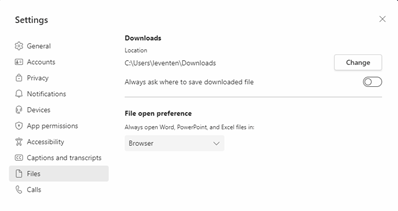
It is good to have many things integrated into Teams. One of my favourites is Yammer – or as we call it now, Viva Engage. With the Viva Engage app, you can not only have the communities inside the Teams client, but it also injects your community notifications into your Teams feed. There are other great apps like, Tasks and Todo, Approvals and dozens more. It is worth using the “Pop out” option to open these apps into a separate window so you can keep using Teams chats and channels while using the app. The same applies to Office documents – it is worth configuring document links to open in a new browser window which will combine the speed of the web apps with not stealing your focus from a conversation that you will want to return to. You can set this in Settings/Files/File open preference:
When It is Time Move Outside Teams
Your chats and channels are a constant flow of communications. There are times however when you want to preserve things from Teams either as reference or as tasks that you want to complete later. For the first, you can use the “Save this message” feature inside Teams:

Or you can “Create a task” to then store the message in a ToDo item so that you can triage it against other tasks (like flagged e-mails) based on importance.
In Summary
Teams is a great tool for everyday collaboration and having many aspects of your work in a single app, ready at your fingertips, but as all workspaces, it can get cluttered and crowded over time. It is worth taking some time periodically to review and clean up so that you can get the most value out of the tools. Do you have other clean-up techniques that you like doing in Teams? Share in the comments so we can use them too!


wow!! 12Teams Tip: Handling Many Chats
LikeLike