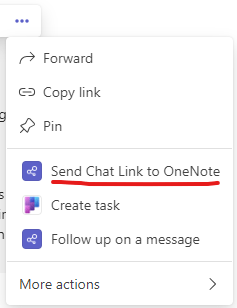
I use Teams a LOT and I like to use it as efficiently as possible. Every moment that I can save in Teams will come back to me many times so I’m always interested in little tricks to save some time. This post is about how you can build a chat library for less-frequently used chats so that you can quickly get back to them with the help of PowerAutomate and OneNote.
Background
I’d love to use channels a whole lot more than I get to but as most things with tools, this is highly dependent on personal preferences and culture. In my organisation around me, many people like using chats instead of channels. I kind of understand them as a chat feels natural taken over from our private lives and it is also a nice, immediate action. “I just concluded that I should do something about this so I will now go and create a chat.” (even when there are other contexts where the permanence and wider visibility of a channel would be better in the long run…). Feels good, doesn’t it? To be fair, there is one thing that a chat does better thank a channel message: if you have people that need to be part of the chat across different parts of the organisation, then you can quickly assemble a chat with those people and even amend later if you have forgotten someone. (That’s where the @mentions in Viva Engage can come in handy where a simple mention can let a user in for a single discussion that is still in a private community. But I digress…)
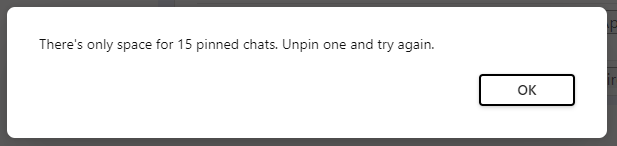
Now, what happens throughout all this happy chatting? Well… you can get lost. Your unread chat count keeps climbing. You fail to notice chats because by the time you get back to your Teams client, they float out of view pushed down by all the other incoming chats. This is especially true if you use pinning to get back to certain important chats (or to keep them at the top). That way you will have an even shorter list of chats that will stay visible in your client before they are pushed down by others. There are also chats that are important, but you only use them every now and then. That chat that coordinates the monthly business review or that other one that is for a community chat that you go to maybe every 2-3 weeks but that it is very useful. You can either pin these, but then they take up precious space in the pinned list (and there is both a maximum number of chats you can pin and also a number that is reasonable to keep visible) or you can use search to find them when you need them. But if you haven’t found a nice unique name for the chat or if you search by the names of the people on the chat and you have multiple chats with a similar constitution of people on then it may take some time to find just the right chat.
An Earlier Version
In the previous version of Microsoft Teams I had a convenient workaround for this: open the chat in the browser (starting at https://teams.microsoft.com/) and the browser address bar always had a unique URL for the chat I had on screen. I just had to take this unique URL and store it somewhere – I chose a page in my OneNote notebook that I called the “Chat Library” – and I could always easily get back to any of my favourite chats without much searching or them taking up precious slots in my pinned chats list. However, in the latest “new” version of Teams – which has many great improvements, especially in speed and resource usage – this feature broke and the browser displays the same URL for each of the chats so I was at a loss as to how I can optimise my chats…
And then, I realised that PowerAutomate may have an answer to my woes. I went and looked and in a few minutes I was up and running with a Flow that helps me do almost the same thing with even an added twist of being able to name my lings right there in Teams. As you may also be fighting with many chats, I thought I’d share this tip with you so you can also take advantage and structure your access to your chats in a similar way.
The Solution
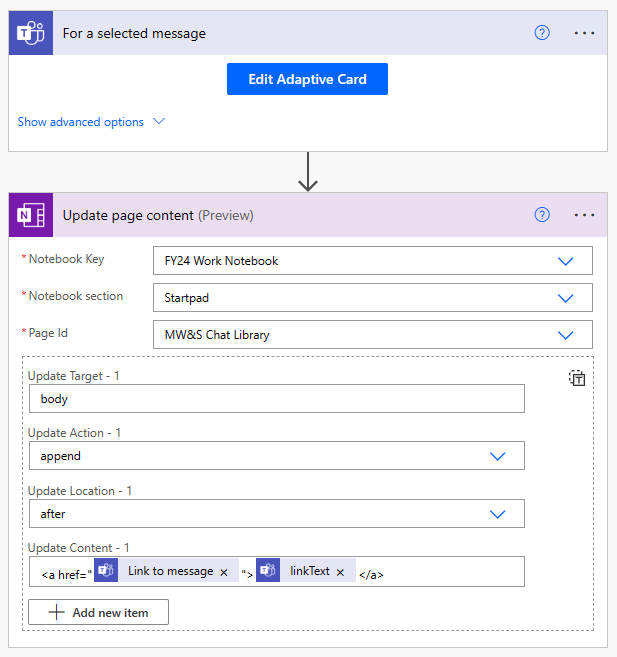
The solution is actually very simple, I just created an instant flow in PowerAutomate that can be triggered on a chat message in Teams and it uses the OneNote “Update Page Content” action to append a link to a selected page in OneNote. I have added an Adaptive Card at the start to be able to set the text for the link so I can quickly identify the links on the page. To get started, you need to select the “For a selected message” trigger among the Microsoft Teams triggers and then add the adaptive card and the OneNote action. The final flow looks like this:
And it looks like this when invoked in Teams:
 | 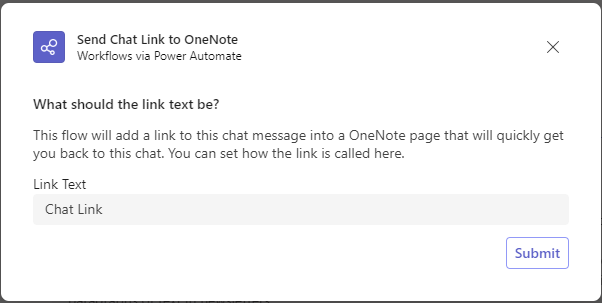 |
This sends the links to the OneNote page where I can then group them, structure them and I can use them to get back to these chats in a quick and efficient way. Do you know a better way? Have you been juggling chats yourself? I’d be interested in your experiences and tips if you have any so please share in the comments. Happy chatting!
 LevInProgress