
2020 has been a tumultuous year for all of us and I’m sure you are looking forward to some time off with the family. Many of us however need to spend the Holidays far from some of our family and loved ones to keep them, ourselves and the wider community safe. Nothing can replace physical presence but with a little help from technology we can at least get close to certain things that we would do if we were together. Some of these are as simple as just making a call but as always, there are some tricks that can make it so much better. If you are stuck at home alone, the BBC has a few recommendations for you too: Covid: Seven ways to get through (and enjoy) Christmas on your own – BBC News
First of all you want to connect with people. The bare minimum is a phone call, but with a little effort you can extend that to a video call or even a group video call (dare I call it a meeting? 😉 If you have been using Microsoft Teams for your work meetings you will be happy to know that you can also use it for personal calls and meetings without even the need to install a new app. And the people on the other side won’t even need Teams to join you. You can add your personal account to your Teams client under your profile and when you switch over to that profile, a new window of Teams will open with a different icon to differentiate from the “work” one. (Tip: you can pin that icon to the taskbar for quick access later).

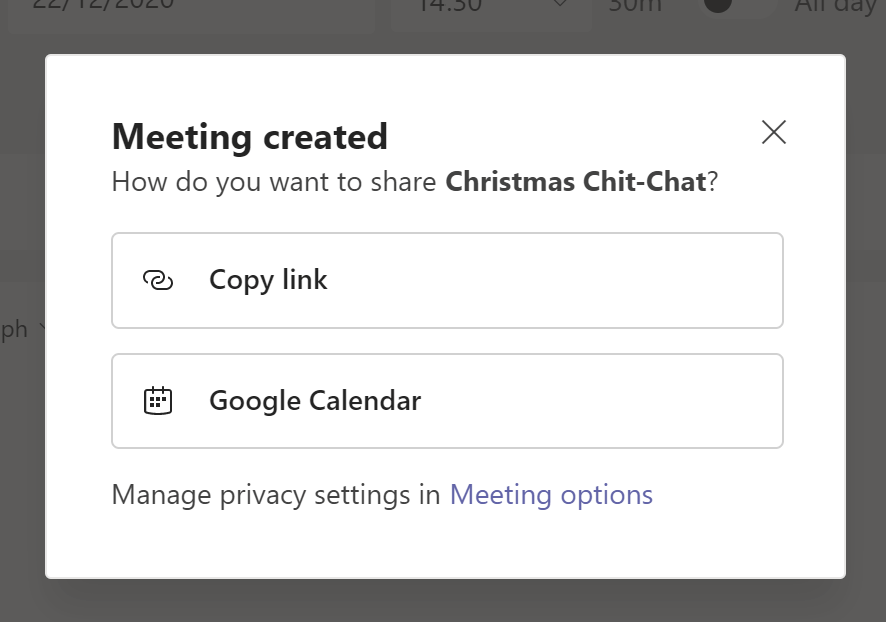
After you have logged in into Teams with your private account you can invite people to chat and you can set up meetings (either scheduled or just “Meet now”). When creating a meeting you will notice that you cannot invite people in the same way you would with your work account but you can easily get a link to the meeting and share it in your favourite chat app or even e-mail. People on the other side will be able to join from the Teams client or just from the browser as usual. You can find more details about using Teams in your personal life in this article and this support hub.
The Skype app (the consumer version available from https://www.skype.com) is an old friend to many of us but only regular users will know the latest features that have been added to it. If your family and friends frequent Skype (or are just more familiar with it than Teams) you can also use Skype to keep in touch. It is good to know about some features – some of which have been recently added:
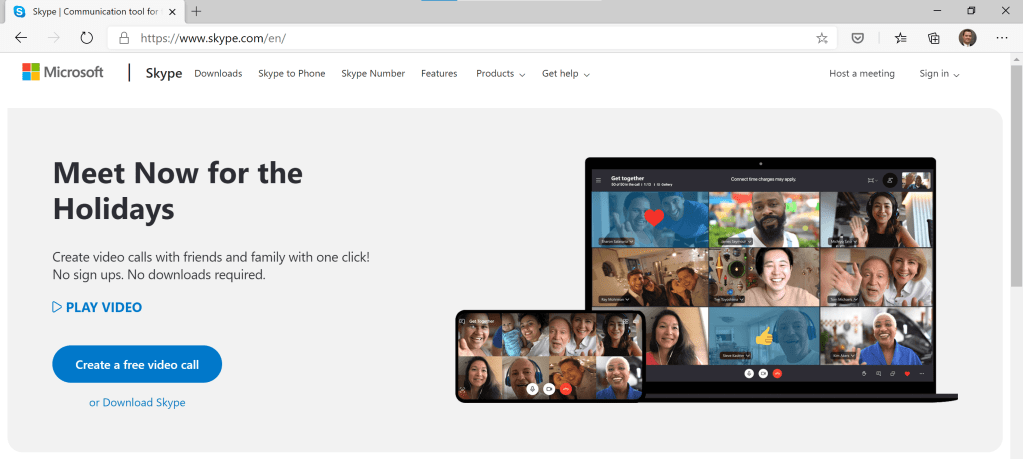
- You can now create “meetings” with Skype too. Just go to https://www.skype.com and click on the “Create a free video call” button. You will have a meeting up and running in no time even without needing to register or to download an app. Up to 50 people will be able to join this call from a browser or an app (the app is required on mobiles) and you can just enjoy connecting.
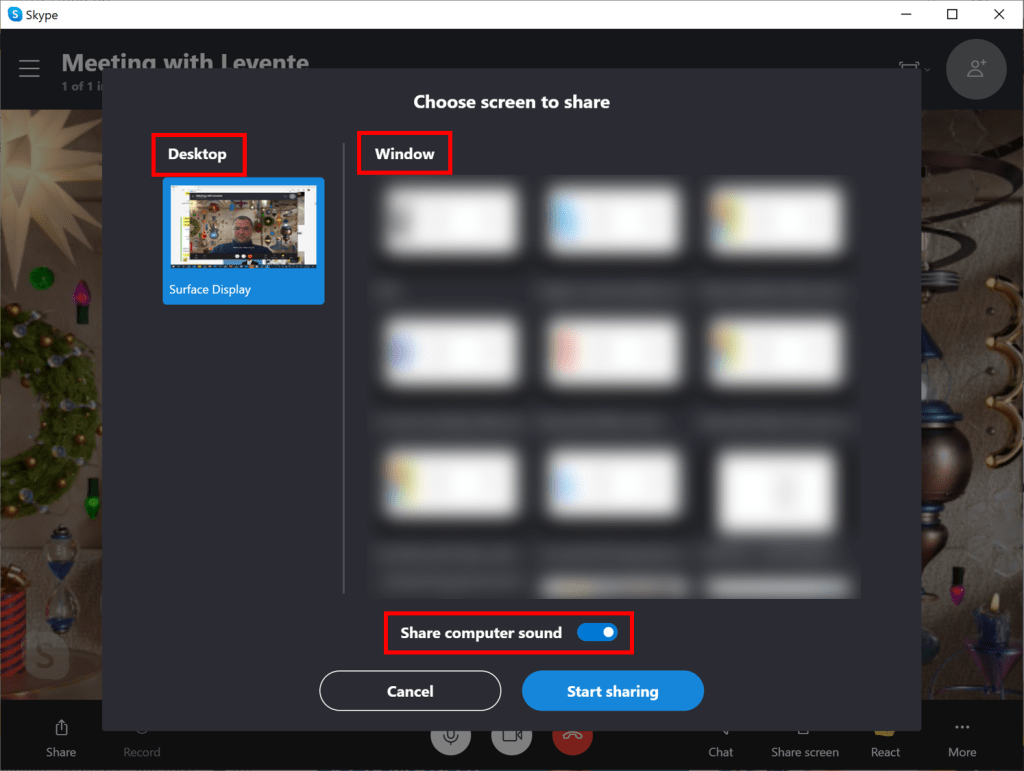
- Inside Skype calls you were able to share your desktop for a while, now you can also share system audio. A perfect way to enjoy some family videos together.
- And as you are used to background blurring and special backgrounds in Teams, you can use them now in Skype too.
- If you have contacts that you’d rather reach through a phone call, don’t forget that a Microsoft 365 Personal or Home subscription will give you 60 minutes of calling to the eligible phone lines for free as part of your subscription each month. This is also a good way to call someone to tell them that you’d like them to turn on their PC to have a Skype call.
A tip from personal experience: when connecting two families with multiple people on either side there is often a competition for the attention of the camera. Kids end up grabbing the phone we are calling from to be the person in focus and this makes the call frantic and hard to follow on the other side. If you have multiple devices available in your household then you can mitigate this by creating a meeting instead of just having a 1:1 call and this way everyone can have their own camera. Similarly, connecting a main PC to a TV through wireless projection or an HDMI cable can give more people the view to the call. If you put an external webcam on the top of the TV it is almost like being in the same room.
After you have discussed the Holiday menu and recent happenings, you may want to find some other pastime while you are in the calls. There are some very good online games that you can play together that don’t require the participants to be “gamers” as they resemble games that we would be playing in person. One of the favourites of my team at work is Skribbl.io, which is a classic drawing-word guessing game. You can set up private rooms to play with only people you choose and you can even bring your own set of words to allude to family stories or other known topics. The other game I haven’t personally tried yet online but was recommended is the online version of the Settlers of Catan board game that we play at home around the table. There are many other online versions of popular board games so you may want to look around for your favourite one.
As a final topic, I wanted to touch on sharing photos. We will certainly take many photos over the Holidays and would want to share many we have taken throughout the year. OneDrive is a great place to store these photos to keep them safe and share them (if you have a Microsoft 365 Personal or Home subscription you will get 1TB or storage for your OneDrive with it). I have “camera upload” on my phone turned on in the OneDrive app which means that all my photos are instantly uploaded to OneDrive where I can sort them and share them how I want it (see how for iOS and Android). Throughout the Holidays I will be sharing these both as links to my family but also inside calls and get-togethers to reminisce about the moments of the year.
I hope each of you have found at least one new thing in this article that will enhance your Holidays. If you have any further tips about using tech to connect with friends and family, please feel free to share in the comments. I wish you all a great time off and I’ll see you back here in the new year! Stay safe!
 LevInProgress