“Wait! There’s more!”
This is an update to my earlier post about presenting remotely from a single screen. Responding to my LinkedIn article Bill Compton – a customer and friend pointed out that there is a better way to a single screen presentation than the Reading view in PowerPoint. I didn’t know that the presenter view was available on a single screen too. As not everyone will notice the comments on the article I thought I’ll write it up and share because it is just so perfect for this situation that everyone needs to know about it.
As the story of the previous post goes – imagine that you’re stuck at home with a single screen – or even more likely: you need to present from a setting that is not your usual setup. Maybe you are travelling with only your laptop or you need to quickly present away from your desk or your home setup. You want to show the best view of the presentation to your audience but you also want to follow your presenter notes and maybe look at other windows too – watch your audience’s video feeds or take some notes.
As I learned, presenter view can be invoked on a single screen too. All you need to do is start the presentation – it will then take over the whole screen. But then you will find a small, translucent hover menu at the bottom-left part of your screen:
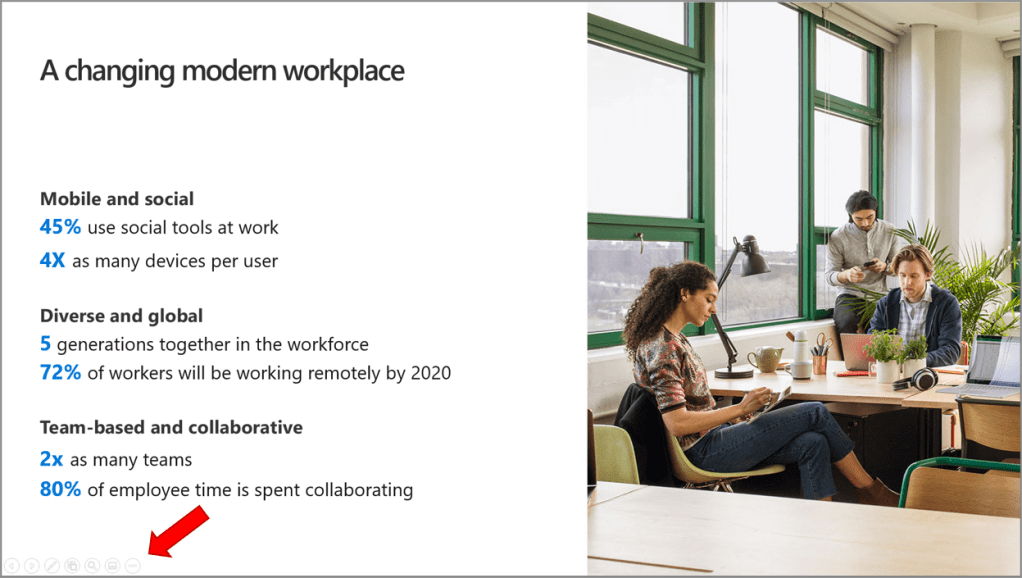
In this menu under the ellipsis button you will find an option to “Show Presenter View”. If you select that then the presenter view will pop up and take up the whole screen. From here you can then resize the presenter view or keep it full screen, but you can also go back to your Teams meeting window and share just the presentation view instead of your whole desktop. You will notice that it is available as a separate, full-screen window to be shared. This way your audience will be enjoying just the presentation without any chrome from PowerPoint (not even the window header and footer like in the Reading view) and you will be able to control the presentation from the presenter view and also read your presenter notes, see the next slide and visit any other windows.
Advice about the camera angle, or staying in touch with your audience still applies using this mode but this is such a neat and elegant way to do your presentations on a single screen that we should thank Bill for taking the time to share this in the comments.
Do you have any other tips for single screen presentations? Don’t forget to share in the comments!
 LevInProgress
One thought on “A Better Way for Single Screen Presentations – Presenting Remotely #2B”