“Can someone watch the chat window for me because I cannot see it? I have only one screen to work with.”
This is the second in a series of articles that share tips and tricks about how you can make your remote presentations better and more engaging in our new hybrid working environment.
In the previous post I shared a few tips on how you can stay engaged with your audience while presenting remotely. Many of the elements there depend on using a second screen (maybe an external monitor in addition to your laptop’s built-in screen). But what can you do if you’re stuck working from home with only a single screen? All is not lost! With a few tweaks and compromises you can still master your engagement.
UPDATE: following a comment on LinkedIn I learned that there is even a better way of doing this than the Reading view described below so don’t forget to check out the follow-up article to this one here: A Better Way for Single Screen Presentations – Presenting Remotely #2B There are still useful points about the resolution and camera use below so I’ll leave this post up here but be sure to check out the presenter view trick described in the update.
Reading View in PowerPoint: at the bottom of the screen in PowerPoint you will find a selection of views that you can use for various situations while editing and presenting slides. One of them is “Reading View” which is intended for you to review your presentation as the audience will experience it. We can use this to enable us to present on a single screen while not in full-screen mode.

For this you will need to resize your PowerPoint window to cover only part of your screen. You can already add the Teams window next to it so you can play with the layout (if you need to see how it will look in a meeting just hit “Meet now” in the calendar view to start a meeting with yourself). Make sure that the aspect ratio of the PowerPoint window is aligned to the aspect ratio of your slides so there are no black bands above, below and besides your slides. Then switch to Reader View and share only the PowerPoint window through your Teams meeting instead of sharing your full screen.
Your audience will only see what is inside the PowerPoint window but that will only contain minimal control surfaces – most of it will be your presentation. You will still have fairly good control over the slides – even skipping ahead and backwards or navigating to sections – just click the button between the back and forward buttons. (note that the audience will see the selection).
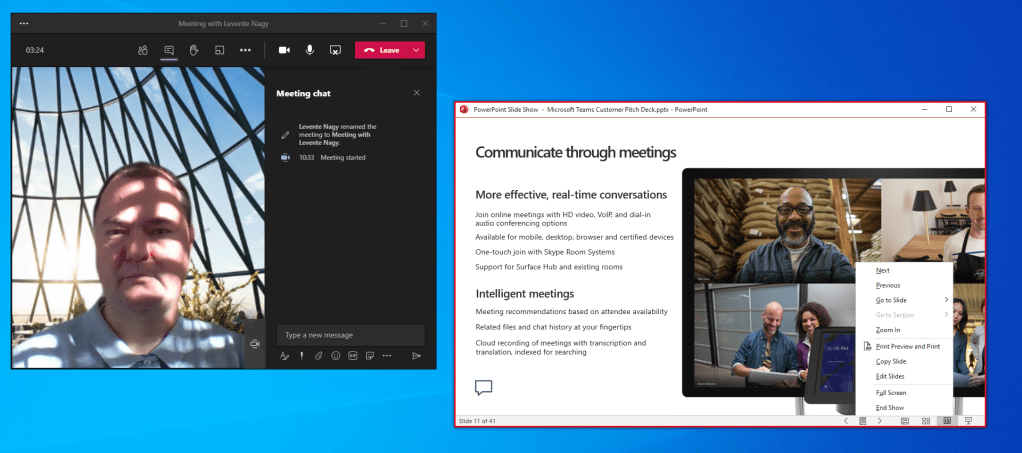
You will not have advanced features like zoom, inking or speaker notes, but if you are stuck with one screen and still want to watch the reactions of your audience over video or engage with them through the chat then this setup will be useful.
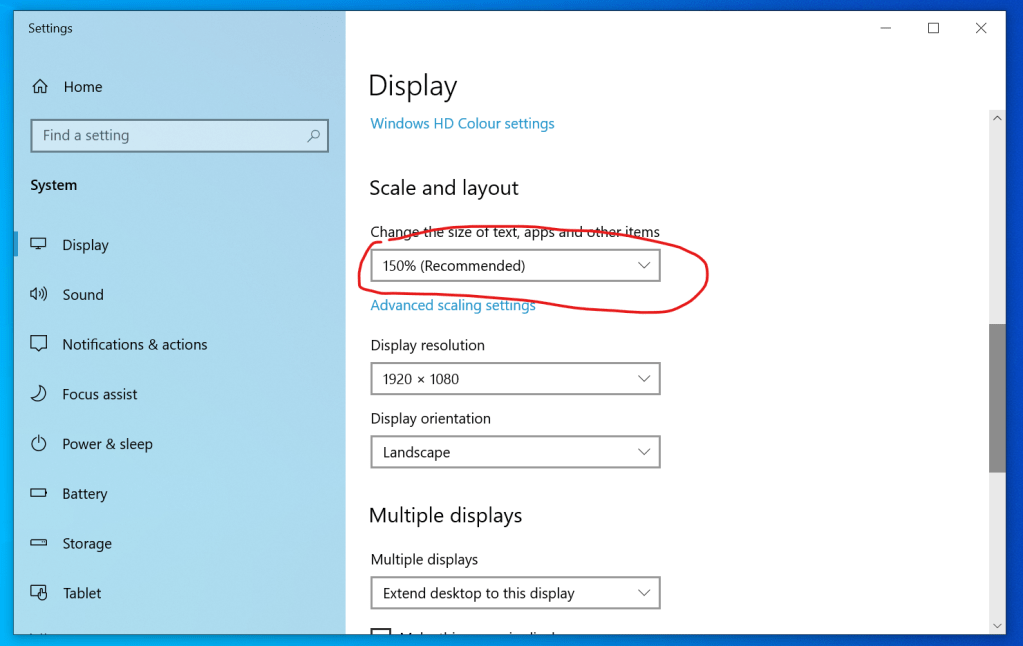
If you are short on screen real-estate and struggle to fit your multiple windows across your screen then you might want to check if your screen is set to higher than 100% scaling. Many modern displays trade off resolution with screen real estate to provide smooth fonts that are easy to read with large enough text that is legible but during a presentation you probably won’t need that and the extra pixels will help you position the video call window next to your presentation. You can always reset it after the presentation is over before you get back to your e-mails.
In closing – don’t forget about the basics: put the window you will be mostly looking at close to your camera for eye contact like mentioned in the previous post and make sure that you are well positioned against your camera for a good presentation! Nobody enjoys looking up your nostrils during the session – it may be best to elevate the PC up to your eye-level – you won’t need to be typing anyways. It may be good to use a clicker so you don’t have to stretch to advance the slides.
Are there any other difficult parts of a single screen remote presentation that you have been struggling with? Share in the comments! Let me also know if you have further tips for single-screen remote presentations and good luck presenting!
 LevInProgress
5 thoughts on “What If You’re Stuck with Only One Screen? – Presenting Remotely #2”