“Can someone watch the chat window for me because I cannot see it?”
Presentation is an art in itself but even great presenters who are engaging and entertaining in person can struggle when facing an audience through a camera. You can decide whether you resign to the limitations of the technology or you can use all opportunities to turn the situation to your advantage, mitigate the downsides of the virtual delivery and add things that you can only do when presenting virtually to wow your audience. The aim is for them to feel special, to feel that you have gone the extra mile to make their remote experience worthwhile. This article will show you how you can keep your finger on the pulse of the audience while presenting. In subsequent articles I will explore other aspects of remote presenting too.
When presenting remotely we often share our screens with a deck and presentations of course are best viewed presented – on a full screen, with animations and the full glory of the design. But when you start presenting, PowerPoint goes full screen – taking up all of your view and Teams politely minimises itself. With these, you lose all control and feedback of your audience except when they speak up. This will challenge even the most experienced presenters – it is almost like the difference between presenting to a room vs. giving a speech on stage lit by spotlights when you cannot see your audience – except that it is not so obvious so the expectations of the listeners are different.
Side note: you can of course use PowerPoint Online inside a Teams meeting – i.e. upload your presentation and use the next/back buttons inside Teams but especially for longer or more complicated presentations I like using screen sharing because that way I have access to my speaker’s notes, I can use the overview navigation to jump between slides, I can use zoom to focus on a part of a slide, I can use annotations and many more features that are not yet available when presenting inside a Teams meeting.
So back to full-screen presentations – with a little preparation you can stay connected to your audience both through video and through chat – let’s see how!
Resize your presenter view: if you are using two screens (the built-in screen of your laptop and an external screen) then the presentation will show on one screen while the other screen will host your presenter view with the view of the current slide, your speaker notes and a preview of the next slide:
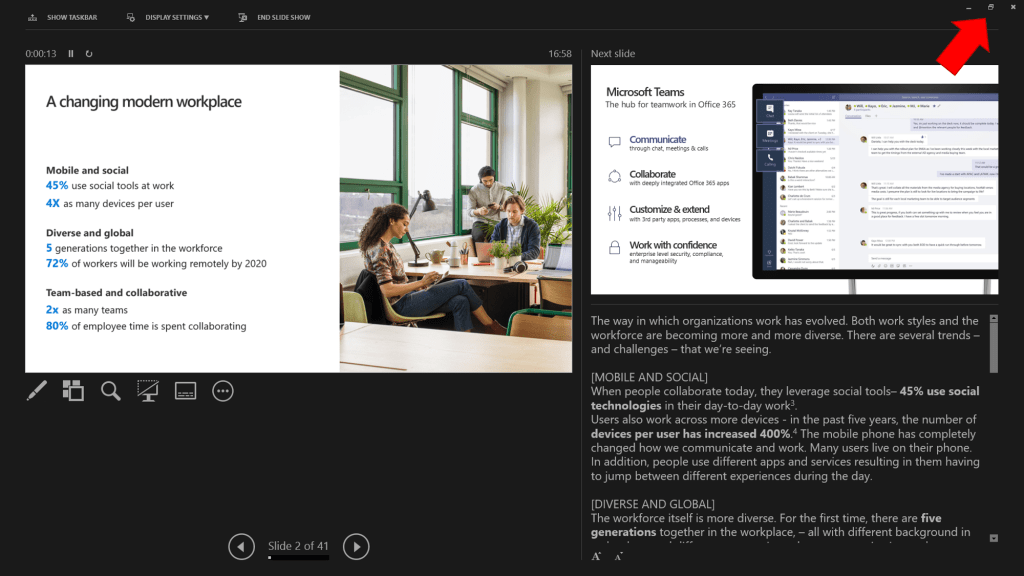
If you have any means to use two screens then this is highly recommended. Even if you need to borrow your TV – if it has a HDMI connector then you will probably be able to use it for the presentation. It is just much better using two screens for a presentation. In the next post I will share a few tips for when you are stuck with a single screen. It is not as good but we can still do better than “Can someone watch the chat for me?”
So while the presenter view shows up full screen by default it actually can be resized. This enables us to do a few things:
- Re-open the Teams meeting window so we can see the video feeds of the audience and also the chat while we are presenting,
- Add any additional windows to the mix – maybe an outline for the full presentation or a OneNote notebook for notes or to jot down questions for answering them later.
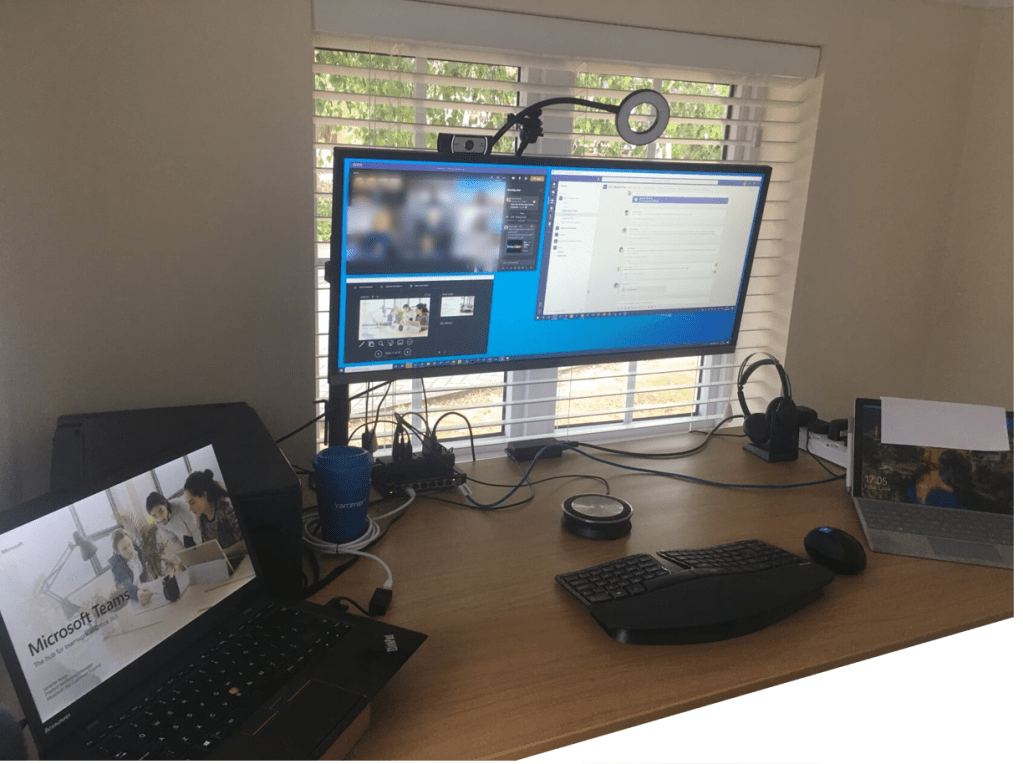
Re-arrange windows to enhance eye-contact: the lack of eye contact is a huge downside of remote presentations but the fact that we cannot make perfect eye-contact shouldn’t deter us from trying our best. If you put the window that you will be most likely looking at while presenting closest to your webcam, then you will almost be making eye-contact. If you feel adventurous and have enough space and devices you can experiment with a teleprompter (even a home-made one) but most likely you will be happy with arranging your windows accordingly and occasionally making the point to look directly into the camera. (See how my Teams meeting window is right below the camera – while looking at my audience I am very close to making eye contact too).
Close the feedback loop: “Was that a question I saw on your face?”, “I see some nodding faces.”, “Feel free to add your questions to the chat.” – Remind your audience that you can see and read them. Use the feedback loops just like you would in an in-person presentation to ask questions or react to the facial expressions of people in the room. In a virtual setting you need to be even more patient with silence – people may struggle coming off mute. This will also encourage them to turn their video on. If you have a larger audience and not every member will fit on your default meeting screen then don’t forget to use the “Large Gallery” or the “Together” modes in Teams or pin your most important audience members to your view so you always see their video feeds, even if they are not among the most recent speakers.
Use helpers: even though I have been using it as a bad example above – having someone else on your side reading through chat, inciting conversation and calling out bits that are worth your attention is a great thing. It should just be by choice and not by necessity.
And finally: don’t forget to stop presenting: when the presentation ends and turns into a discussion or even if you stop for a longer time to answer a question, don’t forget to stop presenting so that the focus is put back on the video feeds instead of a boring “Q&A” slide. Remember – unlike in a room, you are competing with your slides for screen real-estate so be quick to turn back to video.
This is it – a few quick tips on how to stay engaged in a remote presentation. In the next post I will go into detail on what you can do if you don’t have access to a second screen. As for this post, I’m curious – what are your tips that you have been using to engage your audiences remotely? Let me know in the comments!
 LevInProgress
Great set of tips Lev!
LikeLike