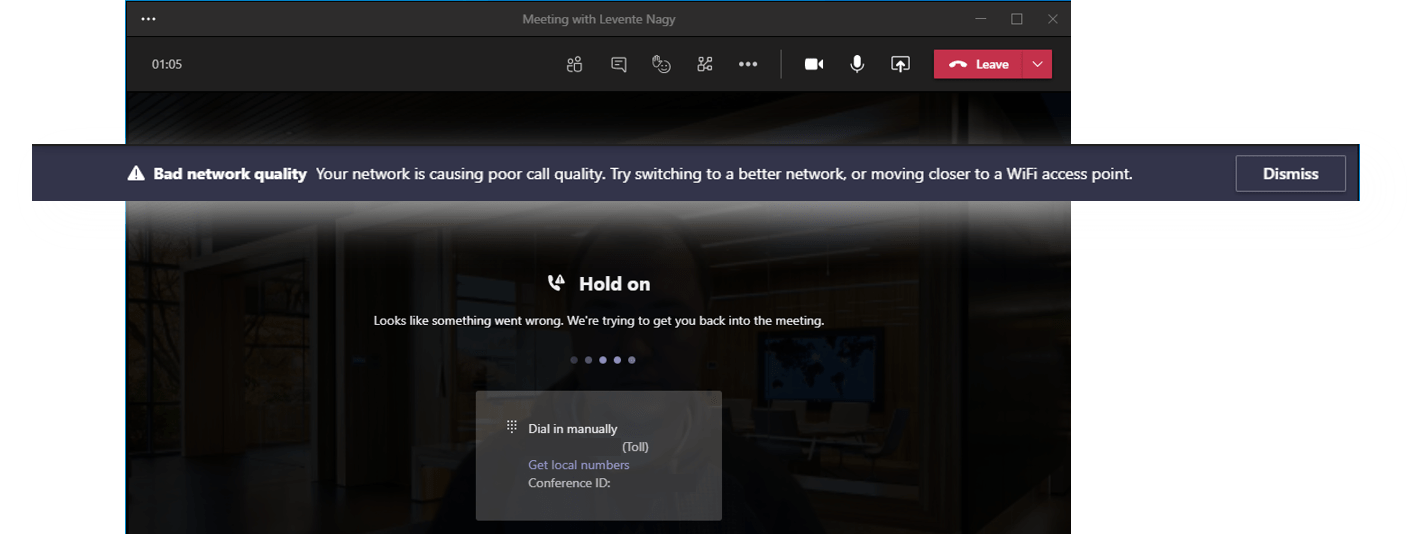
“I’ve been having some terrible issues with my broadband this morning so apologies if I disappear – I will try my best to get back on the call.”
This is the 5th article in a series on remote presenting. If you haven’t seen them yet, be sure to check out the previous ones on audience engagement, single screen presenting, using a hot screen and presenting Teams over Teams.
One of the ways of preparing well for presentations is to think about everything that could go wrong and then think of counter-measures for these possibilities. In a classic in-person presentation you think about what happens if the demo doesn’t work (have screen shots or a screen recording), if the slides don’t behave (have a local copy, be ready to launch into a whiteboard session), what happens if your microphone stops working (get another one, make sure the AV guys have spare batteries) etc. If you are confident with your content you can even survive the most unexpected situations.
One of my favourite examples of this was when I had the pleasure of attending a session by Marcus Buckingham at one of our internal conferences about making your strengths work for you. It was a well-built and very well performed speech but in the middle of it something quite unexpected happened. We had a sudden and complete electrical blackout in the conference centre. The whole room with about 200 of us inside went pitch dark and only faint emergency lights were visible on the walls. Of course this took out the AV system too and there was quite a bit of confusion as to what would happen. After a short time it became apparent that we weren’t in any kind of danger, a few people close to Marcus have turned on their mobile phone lights, he hopped on the top of one of the tables and carried on with the speech in the dark with his own voice. The talk was so engaging that the audience listened on without making the faintest noise so that we could all hear. That’s what I call “smooth recovery”.
So what is the unthinkable disaster that can happen with your remote session? Of course it is the Internet connection going down or deteriorating to the point that it hinders the presentation. While of course a good network connection is inevitable for a remote presentation, there are a few things you can prepare that will mitigate some risks and help you relax ahead of your presentation knowing that you have plans for some of the possibilities.
Before going any further it is important to note that you _do_ want to have a good Internet connection. That is your first line of defence when you don’t need a backup. You won’t need too much bandwidth – a Teams call even in high definition will only take up 1-2 megabits of it but if you are near this limit or if you have other hindering factors then you might want to think about upgrading.
The next thing you want to make sure is that you have priority on your network. Other family members using the same network (Xbox games, YouTube, Netflix and others) will compete for the same bandwidth and can make your calls miserable. As WiFi reception can be variable in an area with many networks in the same space (your WiFi may overlap and collide with your neighbours’ networks) and competing with your family members for the same WiFi bandwidth can be detrimental, you probably want to wire directly into your router. This has the added benefit that some routers will prioritise wired connections over wireless ones so you will get the best out of your broadband. If you are physically not close to your router, you may want to look at using a powerline network extender that will take the network connection through the power cabling in your walls from one socket to another. This way you can get a wired connection even far away from your router. Of course if you have a critical call or presentation it may be worth asking family members to limit their network activity for the duration to eliminate a few risks.
The final and ultimate option to mitigate network problems is of course to have a backup. As it is unlikely that your home would have options for two independent broadband Internet providers and it also wouldn’t make sense to keep up two subscriptions for the occasional important presentation it is most likely that you will want to use some form of mobile Internet connection as a backup.
There are routers that can use two separate connections as backups for each-other but they are rare and not simple to setup so I will rather describe how you can use your mobile phone as a simpler backup option. Depending on the mobile bandwidth available at your location (always worth measuring as mobile bandwidth will vary widely across locations) you can either decide to use mobile Internet as a network backup and tether your PC to the mobile or just use it as THE backup device. Network tethering is quite straight-forward but it will also mean that you will be dropped from the call until you can get your PC over to the new network and reconnect to the call (unless you are using a second device continuously connected through your backup connection).
As a complete breakdown of my broadband connection is unlikely but if it were to happen I would want to remain in control of my call – what I do for critical meetings is that I add my mobile phone to the Teams meeting as an additional device. I don’t turn audio on for the secondary device (or mute both the speakers and the microphone) and add a headset to the mobile phone so that if I need to switch I can quickly put it on and have hands free access to it.

A few things to make sure you do:
- Turn off WiFi on the mobile device. If your broadband goes down you don’t want to wait for your phone to switch over to you mobile Internet connection – you want it to be using that from the get go. By the way, only rely on this solution if your mobile bandwidth and coverage is sufficient.
- Make sure to mute the microphone or avoid turning on audio to prevent feedback and echo inside the call. If you need to fail over, don’t forget to turn audio on and unmute on the mobile too.
- Make sure to have a copy of your presentation either with someone else on the call so they can share on your behalf or in the cloud so you can start presenting from your mobile too. If you shared the deck as a PowerPoint file inside Teams you can pick up on your mobile just where you have left off.
- Have your mobile device plugged in as it will run very quickly down on battery doing the heavy lifting of maintaining the call and the presentation too.
- Make sure to adjust the position of your mobile device so that it is sufficiently far away from your face as the cameras on mobile phones can provide quite the close-up of your face very different from what your audience is used to through your desktop camera.
- Depending on your mobile bandwidth, you may want to go voice-only to preserve what quality you have left after switching connections.
As presenting from the mobile is probably suboptimal compared to the presentation from the PC you want to make sure that you have a few troubleshooting steps also figured out ahead of the time so that you can try your best to get back to the original presentation setup as soon as possible. While speaking to the audience through the mobile, you might want to restart your router, check whether your connection is back up etc.
And finally, you should have plan “Z” too. If you encounter a problem that is impossible to recover from then be ready to accept defeat and regroup. Possibly dial into the meeting through audio conferencing (it’s worth knowing how this is done and have the phone number and conference ID handy), or maybe offer to reschedule and also be ready to just talk to your agenda if you were to lose your visual aids and your demo ability.
What has been the most challenging demo or presentation situation that you had to face so far? Do you have any further recovery tips that you would like to share? Let us know in the comments!
 LevInProgress